
Sub-War support
How to play
One player acts as Host and configures the battle — the world, the fleet, the ammunition stock. Everyone else joins as a Player.
Once the game starts, each player commands their own fleet on a shared, scrollable map: manage speed, heading and torpedo tubes to find and destroy every enemy submarine before they find you.
Jump to a topic
Everything you need to get your fleet into the fight.
Identification
Choose your call sign and role
The first screen asks you to enter a call sign — a nickname of at least 3 characters that identifies you to the other players during the game.
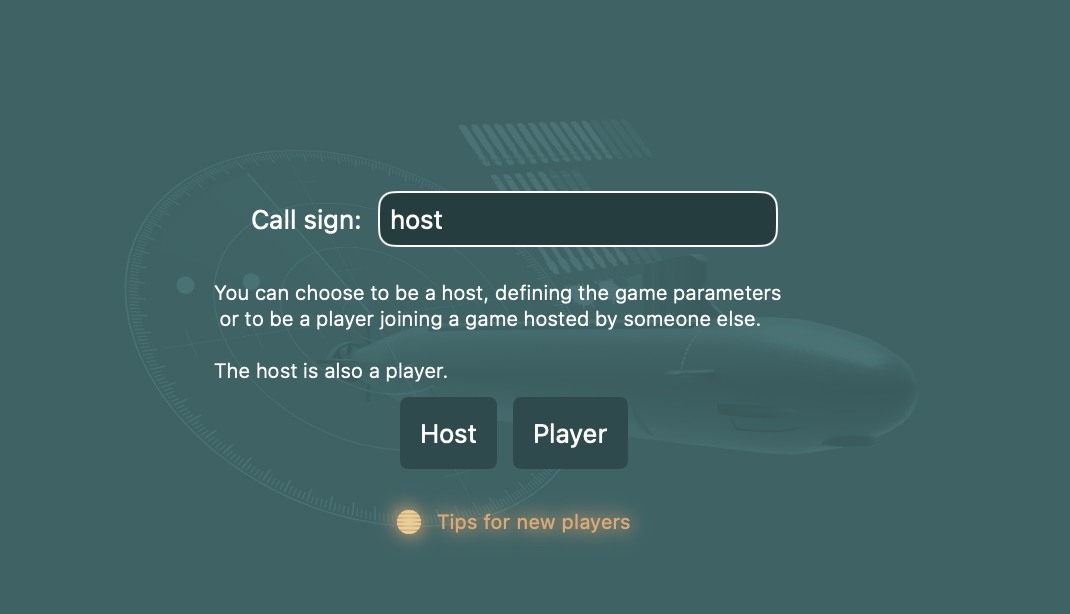
If you received an invite link from a host — shared via AirDrop or Messages — open it before this screen. Sub-War detects it and shows a "Join game" button instead of Host / Player.
A tips toggle at the bottom of this screen turns the in-app coaching tips on or off. Tips are on by default for first-time players.
Host & player — roles explained
The host
The host is the game master and sets up every parameter of the match before a single torpedo is fired.
- Selects the ocean world (battlefield map)
- Builds the fleet by adding submarine types and counts
- Stocks the ammunition reserve at each player's base
- Optionally adds computer-controlled opponents
- Sets the number of spy reveals available to each player
- Saves configurations as favourites for quick reuse
- Generates and shares the invite link for remote players
- Freezes these game parameters when all settings are done
All players receive the same fleet and ammo stock.
If host is alone (no other players have joined), computer-simulated players can be added.
The player
Players join the game created by the host. Either by using an invite link for remote play, or choosing "Player" and selecting a host on the local network.
Their setup is simpler but requires tactical thinking from the start.
- Chooses a fleet emblem to identify their submarines on the map
- Places their base on the map — must be on a shoreline
- Orients the base so the exit faces the sea
- Loads torpedoes and other ammo into each submarine's tubes
- Uses Distribute all to auto-fill every sub in one tap
- Confirms Setup complete when ready to start
A player must wait for the host to freeze the game parameters before they can start placing their base.
Control panel
The toolbar at the top of the Theater view
The left cluster handles zoom; the right cluster handles game controls.
Zoom controls
Max zoom out
Shows the entire ocean world at once — best for a strategic overview.
Zoom out (-) / in (+)
Steps the zoom out or in by 10% at a time.
Max zoom in
Zooms to maximum level.
Game controls


Spy reveal
Activate a spy to reveal one enemy submarine's location.
A badge shows remaining reveals; only visible if the host enabled spying.

Tracking
Toggle: when on, the map continuously re-centres on the currently selected submarine.
Tag / identification
Toggle: overlays each submarine on the map with its name tag.

Settings
Opens a popover for sound volume, colour theme, and tips enable / disable.

Fleet overview
Replaces the side panel with a global view of all players' fleets. Available on Mac only.

Pause / resume
Pauses the game for all players. Only the player who paused it can resume — the icon changes to Play for them.
Game on — the theater
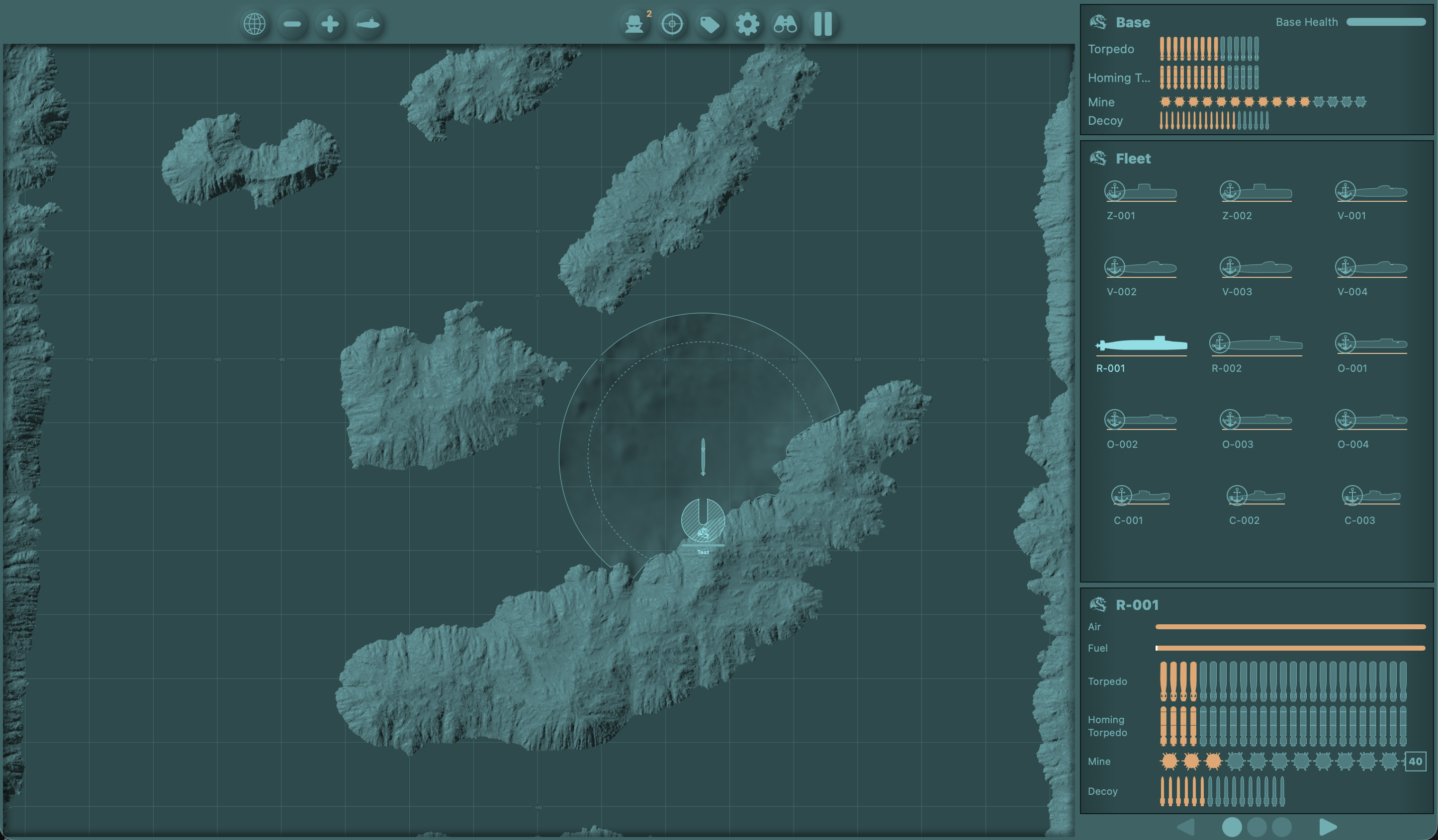
Once the game is on, several panels share the screen. The left part shows the map.
The right hand side contains 5 different panels.
Depending on the screen size, not all 5 panels can be displayed at the same time.
Whenever some panels are hidden, dots at the bottom are presented to cycle through the panels. Triangles on each also allows to cycle through the panels. And swiping across the panel is yet another way to go the previous/next panel.
Large screen
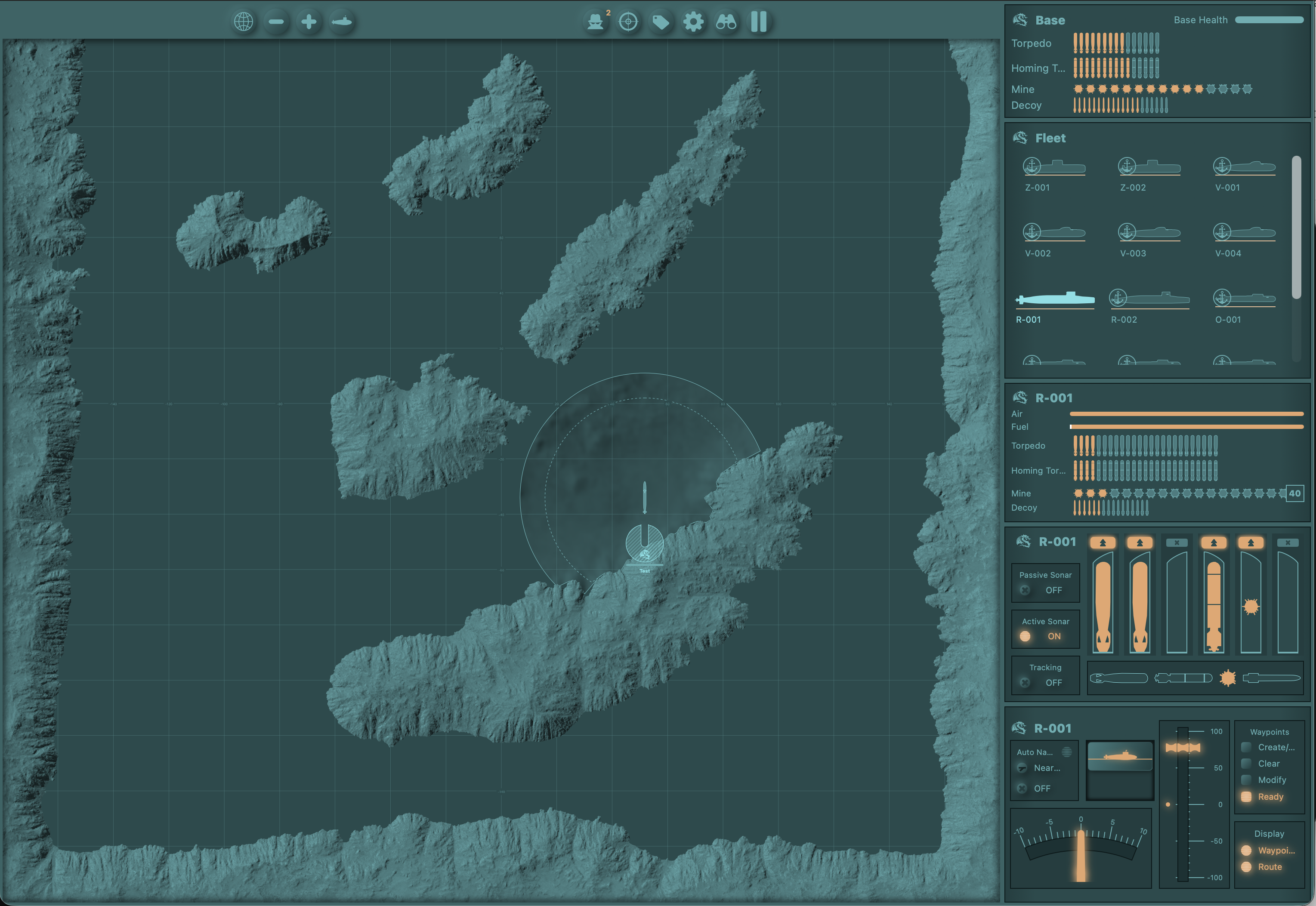
Panels displayed are:
- Base: health and ammunitions stocks
- Fleet: listing all your subs
- Sub status: the sub selected within the fleet shows its resources
- Command: sonars and fire control
- Piloting: dive, manual and auto navigation controls.
Limited space
3 panels are shown, and the other two are accessible through the dots and swiping.
Small space
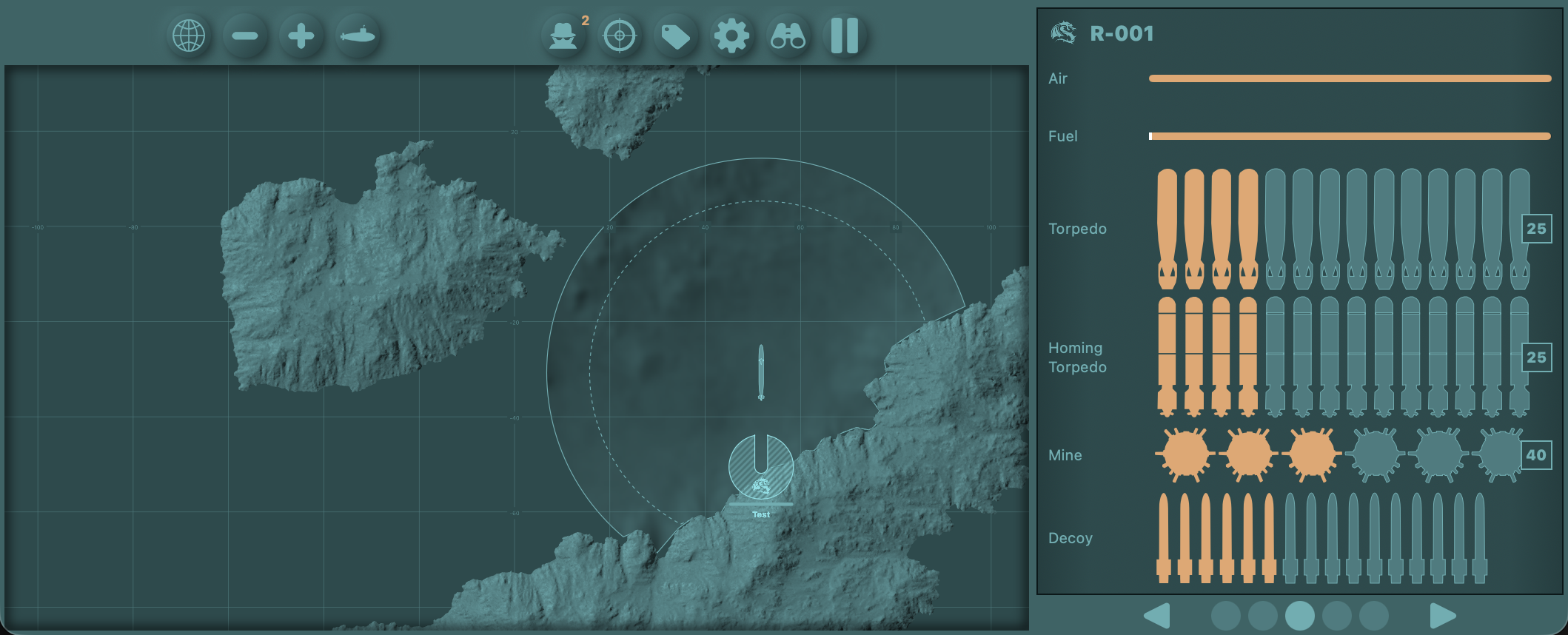
Only one panel at a time is visible.
Fleet panel
Reading the indicators of each submarine
The side panel lists every submarine in your fleet. Tap a card to select it and take control
Each card's icon and badge show the submarine's current state at a glance.
A long press on a sub shows its performance.
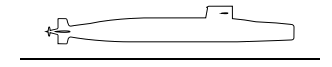

Surfaced / Submerged
When running on the surface, sub is visible by all.
When submerged, air is depleting and sub will surface automatically when air tank is empty.

At base
Docked at the player's base, refuelling or reloading ammunitions.
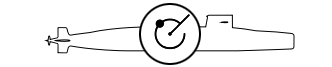
Detecting
Sonar is active — this sub is detecting nearby enemy submarines.

Detected
An enemy sub has spotted this submarine's position.

Low fuel
Fuel is critically low. Return to base to refuel.
If clicking this icon, the sub will automatically trace a route back to its base.

Destroyed
This submarine has been destroyed and is out of the battle.
Sub status panel
Status of the selected sub
This side panel shows the current resources of that panel
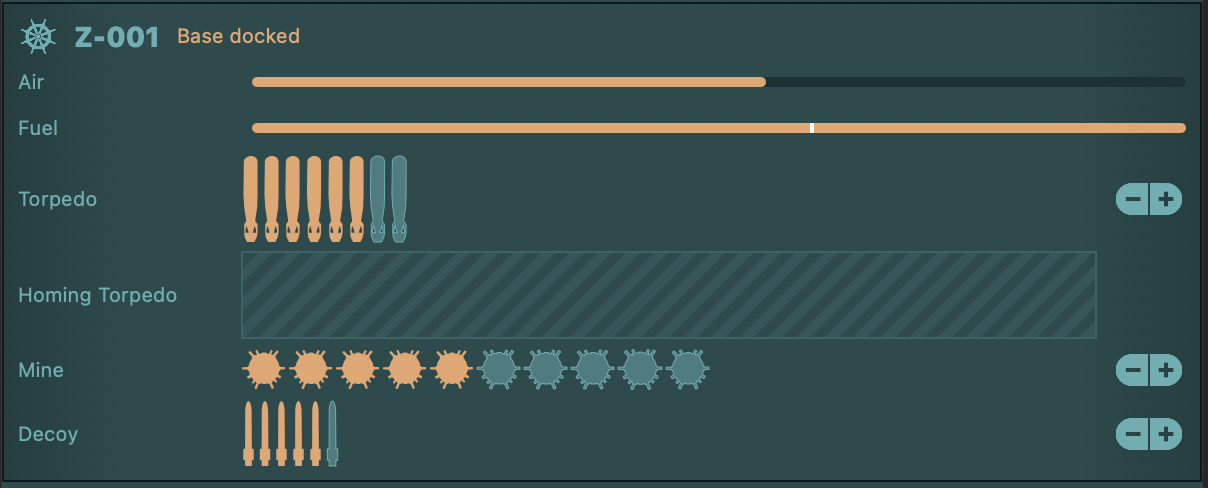
Resources
When running on the surface, sub is visible by all.
When submerged, air is depleting and sub will surface automatically when air tank is empty.
Moving burns fuel.
The level of fuel must be watched, a marker (small white tick) indicates the minimal fuel needed to return to base, where tank refill is made automatically.
Ammunitions
The panel shows the sub ammunitions stock.
When docked in base, the - and + buttons load/unload from the base stocks.
Similarly, when docked to another sub, they control the transfer of ammo between the subs.
Command panel
Control sonar and torpedoes
This side panel controls the activation of sonars, loading torpedo tubes, and fire them.
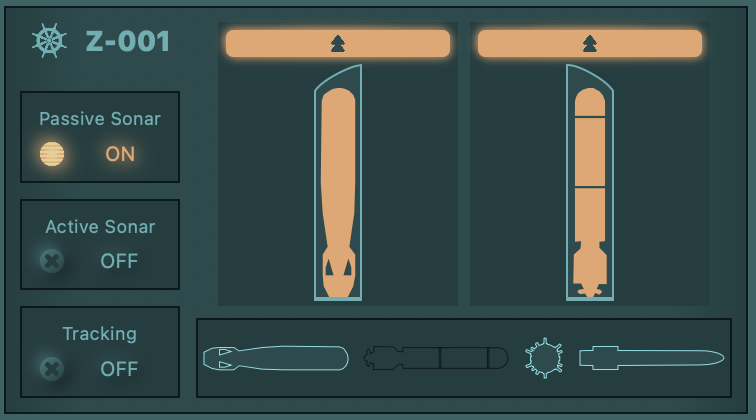
Sonars
Passive sonar does not emit anything, but listen to other subs engines.
The faster they go, the easier they are to detect.
When activated, an indication of range is given to the current sub possible area of detection.
Active sonar emits a beep and listen to its echo. It detects further than passive but it is "noisy", hence easier to detect.
Tracking shows the most recent detections.
Torpedo tubes
Select one of the available ammunitions in the lower bar of this panel,
then tap the tube to load.
Tapping on the top double arrow fires the torpedo.
Piloting panel
Control sub movement
This side panel is used to pilot the sub.
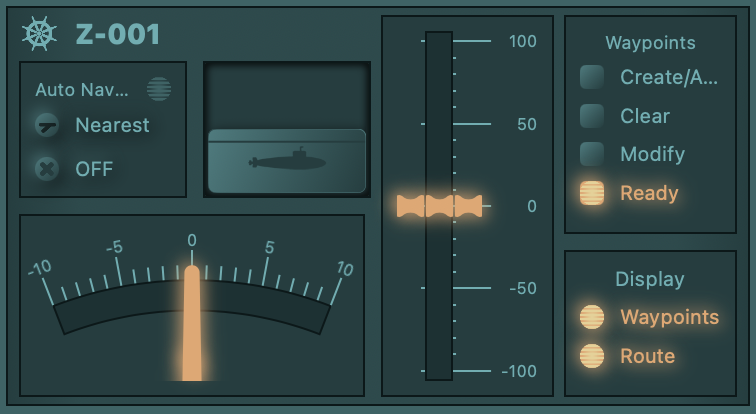
Manual Navigation
The lower left dial controls the turn rate of the sub
Tapping on the dot in that dial, or double tapping the control, set the turn rate to zero.
The central vertical control set the speed of the sub.
Tapping on the dot in that dial, or double tapping the control, set the speed to zero.
Auto Navigation
The rightmost parts of this panel controls the definition of programmed routes.
The create mode adds waypoints to the route.
Setting it to "Ready" allows the activation of the auto-navigation from the left part of the panel.
Two modes are available for the auto-navigation initiation: 'Nearest' to join the route at the closest point of the programmed route or 'head' to force the sub to start the route at its head.
The auto-navigation is simply triggered by the ON/OFF switch.
Keyboard shortcuts (macOS)
Default key bindings — all rebindable in Settings
On Mac, some keyboard shortcuts are active to help pilot the selected sub.
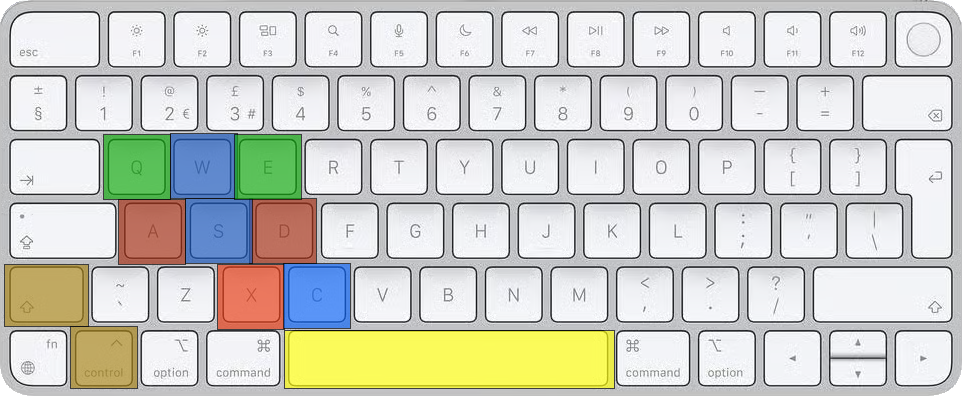
 Select previous / next submarine in fleet

 Turn heading −10% / +10%, reset turn rate to zero

 Increase / decrease speed by 10%, reset speed to zero
 Cycle through command side panels (previous / next)
 Fire the next ready torpedo tube
All shortcuts can be rebound in Game Settings.
Frequently asked questions
How do players join across the internet?
The host generates an invite link in the setup screen. Share it via Messages or any other app.
Players on different networks tap the link to join — an internet connection is required for both host and players.
If on the same network, a player can join by simply choosing the role 'player' in the introduction screen and select a valid host on the next page.
Can I play solo or with computer-simulated opponents?
Yes. The host can add computer-controlled players using the "Add computer players" stepper in the final parameters step.
Their bases are placed by the host, and their fleets are armed automatically.
Computer-simulated players are only available if the host is alone (no network players).
My base placement isn't being accepted — why?
Two conditions must be met: the base must intersect a landmass, and its exit must face open sea.
Check the indicators in the setup panel — both must confirm before "Proceed" appears.
A submarine runs out of torpedoes — can it reload?
Yes — return the submarine to your base. Once docked, ammo is loaded automatically from the base reserve, if any remains.
Transfer of ammunitions can also take place when two subs are in contact at sea and surface.
The game feels too easy or too hard — can I adjust it?
All balance parameters are set by the host before the game.
Try different fleet compositions (fewer, tougher submarines vs. more, lighter ones),
ammo quantities, and spy counts to vary the challenge.
Save your favourite balance for quick access.
Still stuck? Reach out at ddasoft@ddalabs.com — bug reports and feature requests are welcome too.